
.png)
If you are a subscriber, you may have noticed the highlighter tool. It’s one of those Inkwell features that can be really simple and surprisingly useful once you start playing around with it—but what is it, and how does it actually work?
The highlighter tool in Stars (we will talk about the highlighter for Fields in another post) offers the option to select a purple or gray highlighter in order to help solve the puzzle. It can be used in many different ways, depending on the complexity of the puzzle and your personal strategy.
My color system may not be your color system, and that is ok! For me, I use purple to represent sections where I know a star will definitely go. It’s particularly useful for checking things like:
- Four stars across two rows or columns
- Three stars across six cells
- Making sure a 2×1 or 1×2 has Xs on both sides
- Seeing that all the stars in a section have been accounted for
I’m not nearly as consistent with the second colour. Sometimes I use it to represent areas that I know contain two stars. Sometimes I use it for widely spaced possibilities, and, if I am being honest, most days I don’t use it at all. For me, a little purple goes a long way.
That being said, here are a few of those ways I like to use the highlighter in my puzzle solves:
2×1 or 1×2
The highlighter is a great visual tool to see where stars will fit in a 2×1 cell format or a 1×2.
In the sample below, I know one star must go in each purple areas. I don't know where the star goes, but the purple helps mark my logic and remind me to surround those pairs with X’s.

The 2×2 method
One of my favourite uses is highlighting 2×2 areas. Being able to highlight any area I know can only contain one star is extremely helpful on bigger areas, or areas with a lot of unusual shapes.
In the example below, I identified the placement of the three additional stars needed in my two columns; highlighting the area helps me keep track of the possibilities while still seeing the bigger puzzle.

Similarly, I looked at two rows to identify the possible placements for the four stars, and marked those with highlights. Once I do that, I see at least one more cell that needs an X!
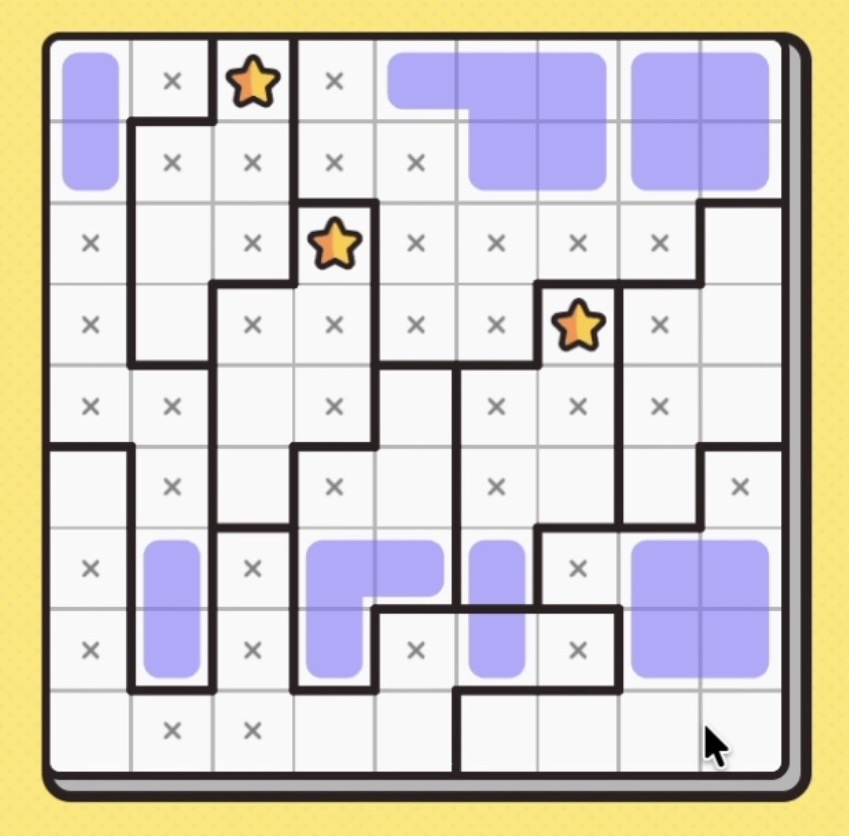
Keeping track of stars in bigger sections
As I mentioned, how you use your highlighter is a matter of preference, and this is where the second highlighter comes into play for me. I use the grey highlighter to block out an area when I know there can be one or two stars, but I don’t know the exact placement. It is extremely helpful in larger regions.

Here I know I need four stars in the top two rows. I have highlighted one star placement with purple. With this in mind, I now know I need two stars in the large region, leading to one star in the top left corner. I can now eliminate any cells that are not in that large grey region, and any cells that do not fall within those highlighted regions in the first two rows.
I love using the highlighter to see the bigger picture when I’m stuck and having trouble finding my next logical step.
It is also great to see what would happen if a particular star placement were possible. Not as a guess, but as a way of visualizing the consequences of what I already know. Sometimes seeing that highlighted area makes the next move suddenly jump out at me.
It's common for me to use the highlighter in one method, make some new Xs, then erase all my highlights and highlight following a different strategy. Often, doing this multiple times will provide the unlock to a particularly tricky puzzle.
There isn’t really a right way to use the highlighter. Some people use it constantly, some have an elaborate colour-coding system, while others (like me) apparently make up the rules as they go. The point is it really doesn’t matter as long as it helps. So the next time you’re staring at a puzzle wondering, “Okay…what am I supposed to see here?” try highlighting an area you’re working on. You might find that the logical next step was hiding in plain sight.
How do you use the Highlighter in Stars? Do you have a favourite coloring system, or a trick that helps you spot your next star placement? Share it with our Insiders community, we’d love to hear how you solve!
.png)
.png)
.png)
.png)
.png)
.png)
.png)